Monday, November 24, 2025

Wednesday, November 19, 2025
Holiday Ornaments
Lasercutting a 3D Snowflake


You don't have to do a snowflake! You could do a silhouette as an RGB Red outline and then engrave words or "logos" inside in RGB Blue.


Thursday, August 7, 2025
First Few Days in the Barber Shop 💈
First Few Days in the Barber Shop 💈
Important Links are all on Schoology, like the Daily Slide and our class-shared Google Doc, called "Delicious Biscuits." During the first few days, we go over procedures, readying our laptops and our minds for a safe, fun building environment:
- First Day Google Form (1 pt)
- Intro to the Barber Shop Slideshow
- Laptop Check '25-'26 (14 pts)
- How to Adobe Illustrator for a lasercutter (This is MY basic video how-to for a scribble. Mech XT students will use these skills to make much more advanced lasercuts after you make a BETTER how-to, for sharing with Mr. B on Google Drive and this website, Screen-Cast-O-Matic (now ScreenPal).
- How to CAD a nametag on TinkerCad ... older version, but it leads you to making a small nametag. I suggest making SURE that your letters intersect and are BIG, BLOCK, AND CHONKIER.
- How to CAD for a Wood Shop Project
- Henley Shop/Technology/Education Class Competencies/Syllabi/Pacing Guides 2025-2026 (in English) (En Español)
- Henley Media Permission/Safe Shop Rules/TinkerCad Permission Form 2025-2026 (in English) (En Español)

Laptop Checks 2025-2026
I. Students must bookmark these sites in a "Barber Folder" on their toolbar. (Here's how):
- Barber Shop Website
- Barber of Cville Blog
- Henley Homepage
- Google Drive
- Schoology
- PowerSchool
- TinkerCad (Please don't log in yet ... we will log in as a class)
- maker:bit / Microsoft Make Code (Please don't log in yet ... we will log in as a class)
- Delicious Biscuits (students must find this in Schoology and break it out of Schoology before bookmarking!)
- Daily Slideshow (students must find the link in Schoology that says "BOOKMARK THIS LINK" and break it out of Schoology before bookmarking!)
II. Your charger has 2 pieces, and, therefore, needs 2 labels, one on each part. You need a flag on your removable cord affixed with clear packing tape (your first and last name!), and you need to tape over your label with clear packing tape:
 |
| New Way (this year)- notice the shininess of the packing tape! |
 |
| Old Way (last year) |
III. You also need to pin shortcuts on your taskbar to the 2 apps we download:
- Arduino IDE- We download this from Software Center (quick download)
- Adobe Illustrator- We download Adobe Creative Cloud from Software Center, THEN we download and install Adobe Illustrator from CC. These will both take a LONG TIME! Close as many apps and tabs as you can!
 |
| Arduino |
 |
| Adobe Creative Cloud |
 |
| Adobe Illustrator |
IV. Come show Mr. Barber when you're pretty sure you're going to get a good grade (not when you've done only a little of the Laptop Check ... I don't want to enter in a 4/14 F!!)

Saturday, June 14, 2025
Weather Station
I finally got a Weather Station. Those who know me or have followed me on Social Media know that I obsess about weather, especially snow prediction. Well, I quit all social media associated with Zuck or Musk and now I'm on BlueSky, Reddit, and NextDoor only. BUT, you can now follow me because of my birthday present this year!
My folks got me an Ambient Weather Station WS-2902:

I waited until after school got out to try to install it and mount it and that ended up being a GOOD call. The software set up was pretty quick and easy ... it reminded me of installing my smart thermostat at my previous house. You use its wifi to start off and connect it to your phone. Assembling it was even pretty easy. Mounting it was a little more difficult. You have to have it completely level (there's a bubble on top for you to use to judge), it has to face North, and you have to both have it a little distance from the house, but close enough for Wifi to reach it. Getting it at least 6' off the ground complicates things a little.

My future Father In Law and I got it done in about an hour. Fortunately, he had a perfect metal pole for the job and he had some pole strapping that we used to attach it to a wooden fence pole.


Now, I'm sharing with AmbientWeather.net ... check it out: Link and my station is KVAAFTON89 on WeatherUnderground.
Wednesday, April 16, 2025
Monday, March 10, 2025
Microcontroller Tutorials (Arduino and micro:bit)
Microcontroller Tutorials
micro:bit
micro:bit is a good basic way to start using microcontrollers. It even has block programming, so elementary students can "code," too! Because my students are in the 7th and 8th grade Mechatronics classes, we use actual code instead of just blocks:
Arduino on TinkerCad
When we use Arduino in the Barber Shop, we try it out on TinkerCad first. This gives a rough draft "try" without having to worry about avrdude/Serial Port errors, AND it gives the coder a good diagram to look at when they are coding IRL:
Arduino IRL
Mechatronics
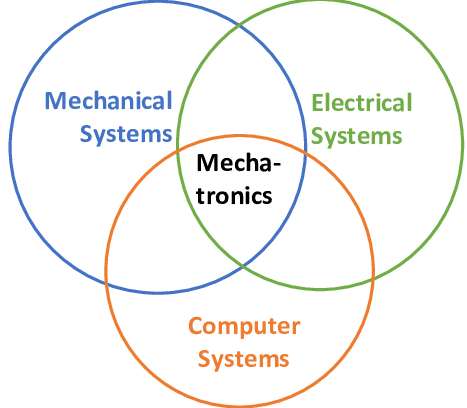

Mechatronics is Programming a Computer to convert Electricity to Mechanical Energy
What are examples?
In the past,
My class has built and flown airplanes, similar to UVA’s RazorDrone
We have built a Lego MindStorm obstacle course (from ANCIENT Lego MindStorms I found left in one of my rooms)
At UVA, Mechatronics built the HooPrint AND a complete working electric guitar
What other examples can you see in a classroom or think of that are Mechatronics?
Tuesday, February 4, 2025
Lasercutting Design Project Spring 2025
Here is the official signup: Student Signup (use the signup tab, NOT the chili spoon tab).
~~~~~~~~~~~~~~~~~~~~~~~~~~~~~~~~~~
Laser-cutting a Cell Phone Stand (on Birch or acrylic)

- Cell Phone Stand Video 1- Base File Setup
- Call it "Username Cell Stand Back"
- 12x12” workspace size
- Change to RGB
- Cell Phone Stand Video 2- Setting Up your Back Piece
- Open "Username Cell Stand Back"
- Increase the size of the bottom hole to put in the cords
- 7” tall, 4” wide
- Cell Phone Stand Video 3- Bottom Piece
- Call it "Username Cell Stand Base"
- You will need to add an Engraved Decoration, could be copied and pasted from your earlier work ...
~~~~~~~~~~~~~~~~~~~~~~~~~~~~~~~~~~
Challenge Coin (on Birch)
2 students will have to work together to engrave on the front and the back of a circular piece of birch and then lasercut and engrave approximately 150 of them!
~~~~~~~~~~~~~~~~~~~~~~~~~~~~~~~~~~
Earrings (on Basswood)


- We trace the teacher's choice image/logo using their link or a Google image search and words like logo, cartoon, clipart, comic, outline, or silhouette to make the hornet as easy to trace as possible. Remember that you WON'T be coloring it! (Stroke: RGB Blue, Fill: None)
- The outline of the shape and the small hole vary, but we can iterate after you've lasercut on cardboard. (Stroke: RGB Red, Fill: None)
- After you've made the first one, we will be reflecting some or all of the design so that it's a mirror image of the first one. Then we will move them as close together as possible.
~~~~~~~~~~~~~~~~~~~~~~~~~~~~~~~~~~
Hall Pass (on Birch)

Hall Passes need:
- We trace a (non-Georgia Tech Yellow Jacket) Hornet using Google image search and words like logo, cartoon, clipart, comic, outline, silhouette to make the hornet as easy to trace as possible. Remember that you WON'T be coloring it! (Stroke: RGB Blue, Fill: None)
- You will also be tracing the teacher's choice image/logo the same way! (Stroke: RGB Blue, Fill: None)
- The Teacher's Name, Room Number, and Henley Hall Pass (Stroke: RGB Blue, Fill: None) using the text tool to make them as readable as possible, using Calibri, Courier, Verdana, Arial, or other Sans Serif Fonts. All the words should be sized the same without stretching them!
- The Rounded Rectangle should be 3.5" x 3.5" and the hole should be big enough circle to clip a lanyard holder through the top but not TOO close to the top so it won't break off (we don't supply lanyards ... I don't have any to give away) (Stroke: RGB Red, Fill: None)
~~~~~~~~~~~~~~~~~~~~~~~~~~~~~~~~~~
Hornet Faceplate (on Acrylic) for use in an aquarium with LED lights
This is specific to Mr. Nunley's needs.
- We trace a (non-Georgia Tech Yellow Jacket) Hornet using Google image search and words like logo, cartoon, clipart, comic, outline, silhouette to make the hornet as easy to trace as possible. Remember that you WON'T be coloring it! (Stroke: RGB Blue, Fill: None)
- It SHOULD have a Rectangle that he can specify the size. (Stroke: RGB Red, Fill: None) We can probably adjust the size after you have cut your first prototype on cardboard.
~~~~~~~~~~~~~~~~~~~~~~~~~~~~~~~~~~
Keychains (on Birch)
- We trace the teacher's choice image/logo using their link or a Google image search and words like logo, cartoon, clipart, comic, outline, or silhouette to make the hornet as easy to trace as possible. Remember that you WON'T be coloring it! (Stroke: RGB Blue, Fill: None)
- The outline of the shape and the small hole vary, but we can iterate after you've lasercut on cardboard. (Stroke: RGB Red, Fill: None)
- We can probably adjust the size after you have cut your first prototype on cardboard.
~~~~~~~~~~~~~~~~~~~~~~~~~~~~~~~~~~
Lasercutting 3D Snowflakes or Ornaments (on Basswood)
- We trace the teacher's choice image/logo using their link or a Google image search and words like logo, cartoon, clipart, comic, outline, or silhouette to make the hornet as easy to trace as possible. Remember that you WON'T be coloring it! (Stroke: RGB Blue, Fill: None)
- The outline of the shape and the small hole vary, but we can iterate after you've lasercut on cardboard. (Stroke: RGB Red, Fill: None)
~~~~~~~~~~~~~~~~~~~~~~~~~~~~~~~~~~
Thursday, October 10, 2024
Lasercutting and 3D printing in the Barber Shop
3d printing
Click on Prusa Slicer

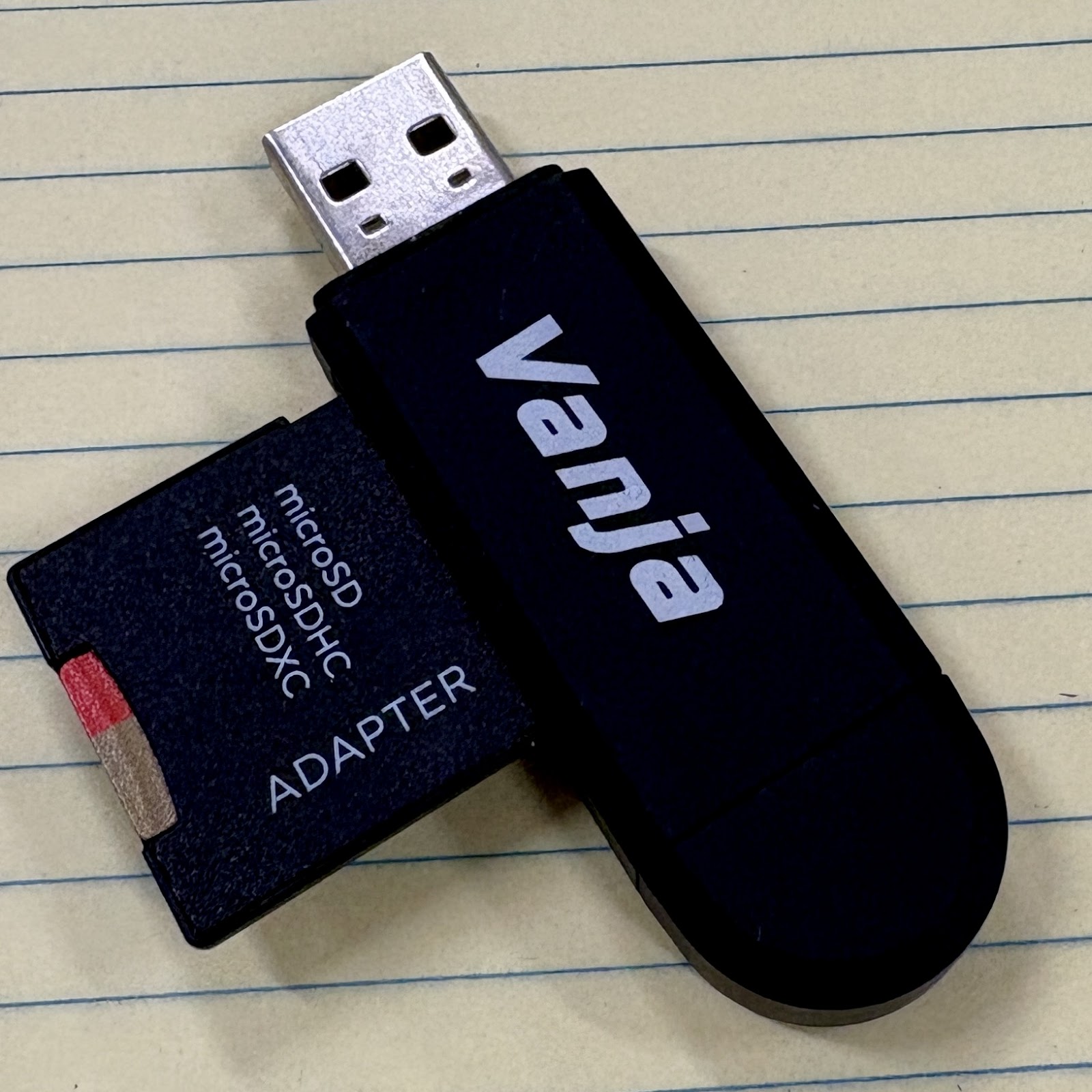
Pull out the SD card, plug it into the Vanja “Thumb Drive” and plug that into the computer
Click on Add.
Find your .STL file in the 00001BARBERTECHNOLOGYFOLDER without typing (the list SHOULD be in ABC order … double click or click and open.
Click Slice Now in the Bottom Right corner.
Click Export GCODE in the Bottom Right corner.
Find “USB Drive” on the left side to save it in. (Save)
Click the Eject Button (NOT THE X).
Remove the Vanja and SD Card and put them back where you got them (Vanja Thumb Drive goes back in the Orange Tray & SD Card goes back in the Prusa- MAKE SURE THE METAL IS FACING YOU.
Turn the knob clockwise until it points > to your file and then poke it in quickly like a button. DO NOT HOLD IT IN TOO LONG.
Lasercutting
PROTOTYPES ON CARDBOARD MUST BE APPROVED BEFORE YOU CAN LASERCUT FINAL PRODUCTS ON BIRCH
Open your Adobe Illustrator Project. After the previous lasercut is done, click File & Print.
On the Print Window, click Print.
Click on the red lasercutter icon (next to Adobe Illustrator on the taskbar).
If all your lines are bright red and blue, you are ready to move your design. If it is light & gray, STOP! Click on the button with 4 arrows. Some squares will appear. Drag the squares to move your design around. Take care not to miss and accidentally ZOOM in.
The “Focus View” button to the left of “arrows button” will put a red laser pointer dot on the material. Click on all the edges and corners to make sure your design will fit on your material (the top has to be open for the red dot to appear).
Once you are sure it will fit, click on the magnifying glass button to change the red “Go” button to “Settings”.
You’re ready to lasercut!
Shut the lasercutter, and DON’T LET IT SLAM!!
Turn on the fan, by flipping the light switch on the outlet behind the lasercutter.
Click the big, green play button to start it.
Monitor it closely to make sure it doesn’t catch on fire. If it DOES catch on fire … yell, scream, and freak out until Mr. B comes running over.
After the duh-duh noise from previous cuts, the next person can click File >> Print as you can cut off the fan and retrieve your lasercut!!
FIRE??? If it DOES catch on fire … yell, scream, and freak out until Mr. B comes running over. Post-fire, we open the garage door and point every fan OUT. Leave the exhaust fan on, even though we won’t lasercut for a bit!
Subscribe to:
Comments (Atom)